From a paper card to a contact you can find
This page describes features currently available in GenCard. For step-by-step instructions, see the user guide.
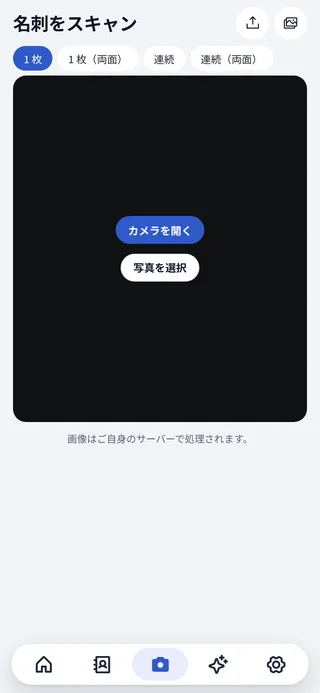
Scan with the camera
Place a business card in the frame and take a photo. GenCard detects the edges and crops the image; you can adjust the four corners when needed.
- Single-card, two-sided and continuous capture modes
- Warnings for blur, glare or low light
- Unsent capture sessions stay on the device
- Uploads resume when the connection returns
Import images and multi-page PDFs
Upload up to 500 images or PDF pages in one batch. Upload progress and recognition continue in the processing tray after the dialog closes.
- Pair consecutive pages inside each PDF as front and back
- Use one page as one card when pairing is off
- Exact duplicate images are skipped before AI processing
- Technical system retries do not charge another AI Credit
Extract multilingual contact details
AI extracts names, companies, departments, titles, phone numbers, email addresses, websites and multilingual addresses. It also suggests country, organization type, industry and search keywords.
- Japanese, Vietnamese and English business cards
- Low-confidence results can be marked for review
- All extracted fields can be edited
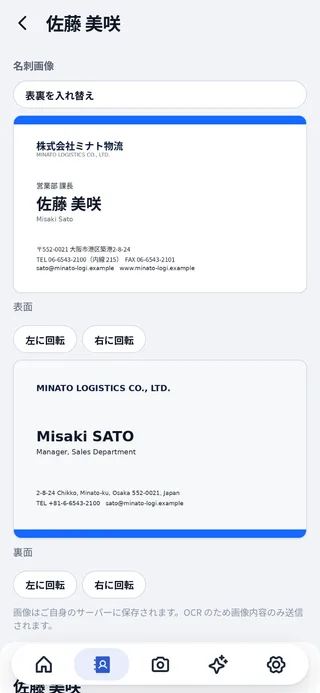
- Rotate, recrop or swap the front and back images
Organize contacts with your own groups
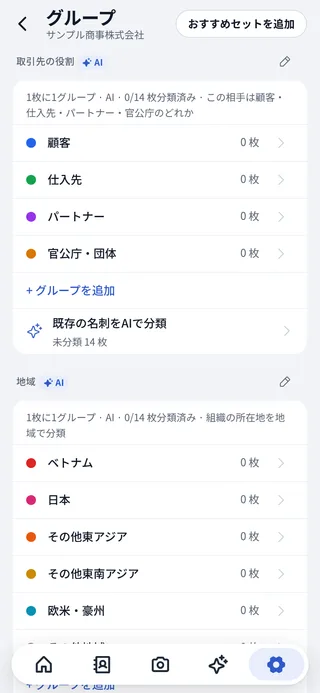
Define group sets such as Partner role, Region or Stage. Describe the criteria and let AI suggest a group for you to review.
- New cards can be classified during the initial read
- Re-reading or reclassifying existing cards at your request uses AI Credits
- Assign flexible labels manually
- Filter and bulk-assign contacts by group
Search by asking a question
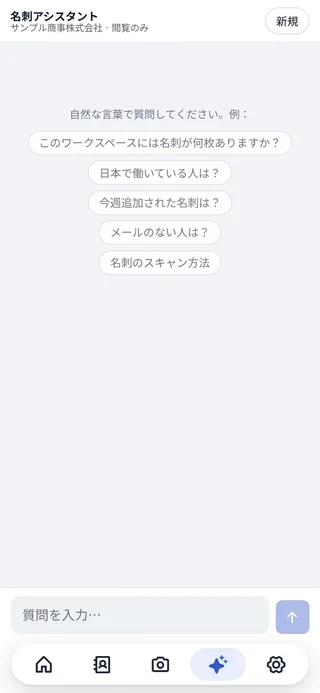
Ask questions such as “Who works in Japan?” or “Which cards were added this week?”. The assistant searches the book you are viewing in Contacts and returns related contacts.
- Search tools are limited to the book you are viewing in Contacts
- Bulk label changes require a preview and user confirmation
- The directory owner can enable or disable the assistant
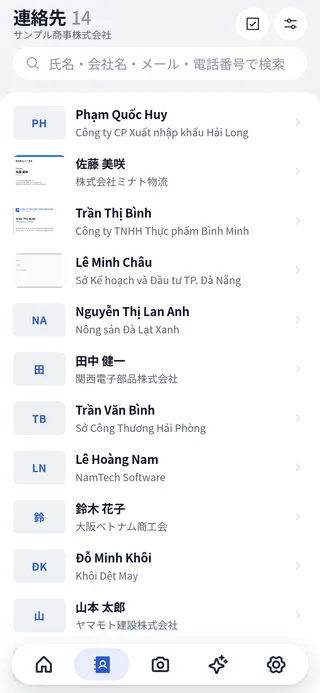
Search quickly and narrow the results
Search by name, company, email, phone number or industry keywords. Filter by country, organization type, group and image availability.
- Call, email or copy an address from contact details
- Select multiple contacts for group changes or deletion
- Keep previous business-card versions for the same person
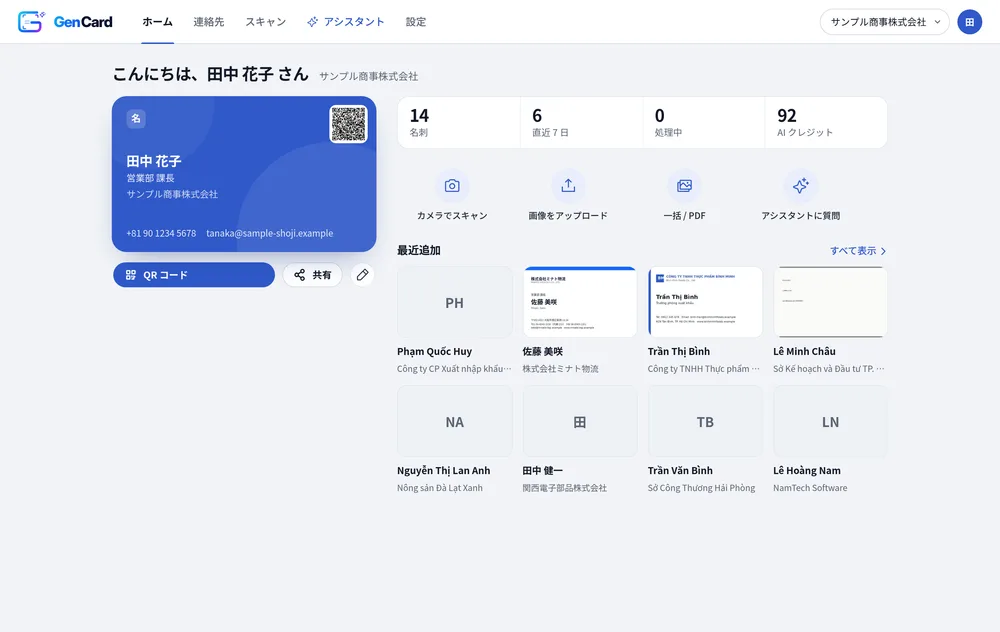
- Use a multi-column table on desktop
Share an organization directory
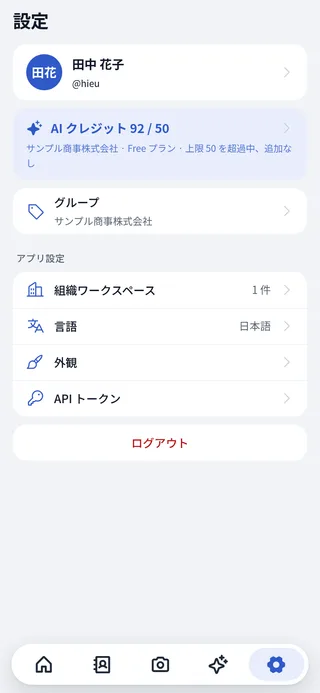
Buying the Team plan creates a shared directory (a team) for a company or department. Members share contacts and groups, while owner, admin, member and viewer roles control access.
- Contacts stay with the organization directory when a member leaves
- Team plan: every member holding a seat gets 500 AI Credits a month
- Team starts at two seats; add seats as the team grows
- Switch Personal / Team in Contacts; choose “Save to” when adding cards (defaults to the last place used)
- Move personal cards to the team (optionally keeping a copy); copy team cards to your personal book when the owner allows it (every copy is logged)
Built for desktop too
Open the same account on a computer to use a multi-column contact table, a wider assistant panel and sidebar settings.
Related articles
Start free with 10 AI Credits a day
No credit card required. Try it with the business cards you already have, then review and correct the results if needed.