Business Cards to CRM: Turning Cards into Data with AI
How to turn business cards into CRM data with AI, from scanning and checking to field mapping, deduplication and a sample API call, with tips for Japanese cards.
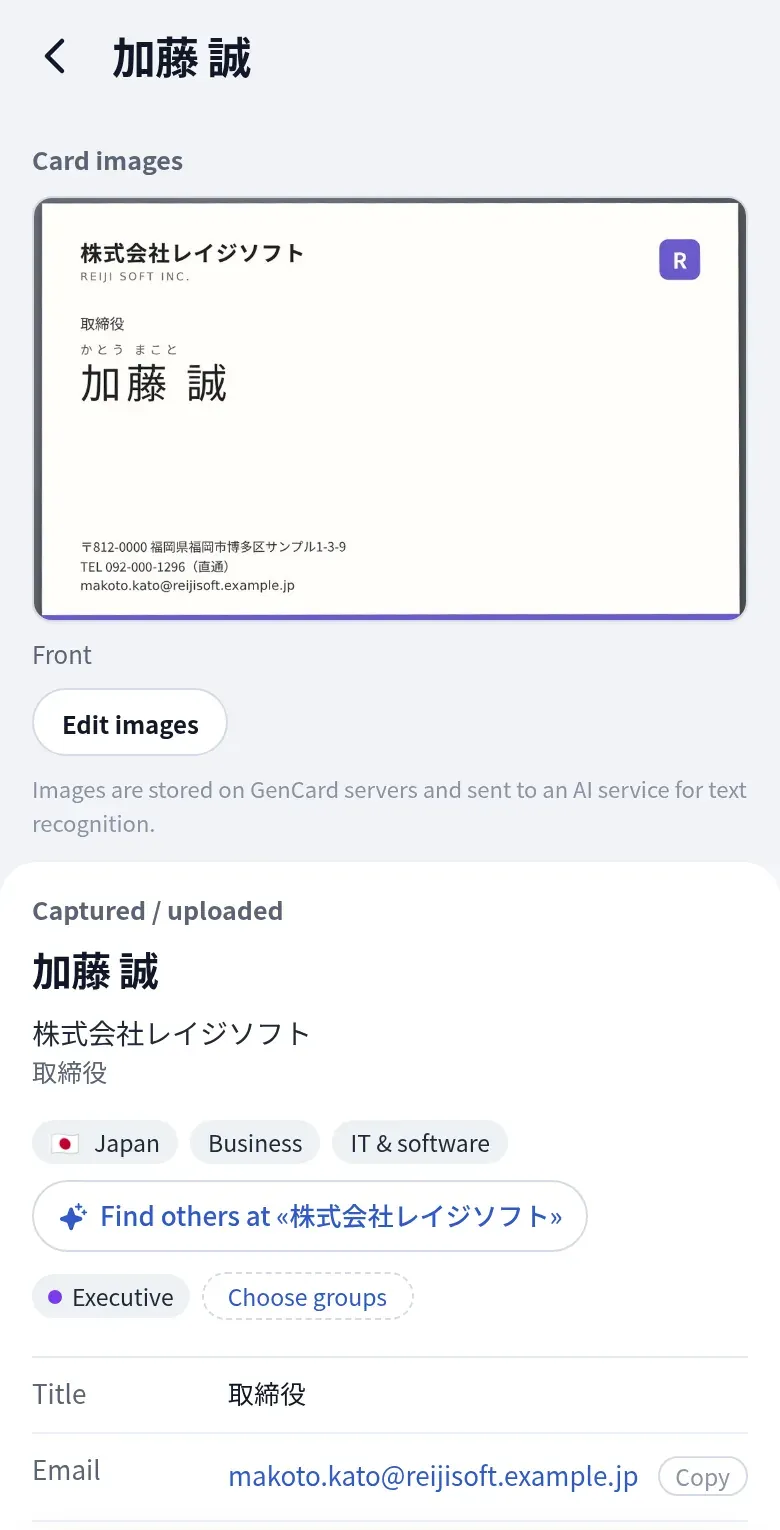
Moving business cards to CRM records takes four steps: let AI read the cards into structured fields, check the results, map the fields to your CRM, and send the data through a connector, an API or a file import. AI saves the most time on the reading and sorting; the mapping and the rules for duplicates are decisions your team still has to make. This guide walks through each step, shows a real API call with fictional data, and covers what to watch for with Japanese cards. It is written by the developer of GenCard, a business card app, and says plainly what GenCard does not do yet.
Why move business cards to your CRM?
A CRM is only as useful as the contacts in it. Cards collected at meetings and trade fairs often stay in a drawer or in one salesperson’s phone, so the rest of the team never sees them and follow-ups depend on memory. Typing each card in by hand is slow, especially when cards are in Japanese and your team doesn’t type kanji. Letting AI do the data entry, then sending checked data to the CRM, removes most of that work.
From card to CRM record: what AI does and what people decide
| Stage | What happens | What AI handles well | What people decide |
|---|---|---|---|
| 1. Capture | Photograph or scan the card | Finding the card edges, cropping | Photo and scan quality |
| 2. Read | Split text into name, company, title, phone, email and so on | Field extraction, formatting | Low-confidence results, unusual name readings |
| 3. Classify | Sort by industry, country, partner type | Objective categories such as industry, country, language | Deal stage, priority, key accounts |
| 4. Check | Clean up duplicates and outdated details | Spotting a new card for a known contact | Job changes, which record wins |
| 5. Hand over | Send data in the CRM’s format | ― | Which fields go where, how often, who owns it |
Three ways to get card data into a CRM
| Method | How it works | Good fit | Watch out for |
|---|---|---|---|
| Built-in connector | The card app syncs selected data with a specific CRM | Your CRM is supported by your card app | Limited to supported CRMs; sync scope varies |
| API | A script pulls card data and pushes it to the CRM’s API or import | You have someone who can write and maintain a script | Development and upkeep; check both APIs’ limits and permissions |
| File export and import | Export a file such as CSV and import it into the CRM | Few records, infrequent updates | Manual work each time; column and encoding adjustments |
With GenCard, paid plans can use file export: Export on Contacts gives you Excel, CSV, vCard, or ready-made import files for kintone, Salesforce and HubSpot. Pro and Team can also use the API. There is no built-in connector that syncs with Salesforce, HubSpot, kintone or other CRMs automatically.
Decide these before you sync
Map the fields
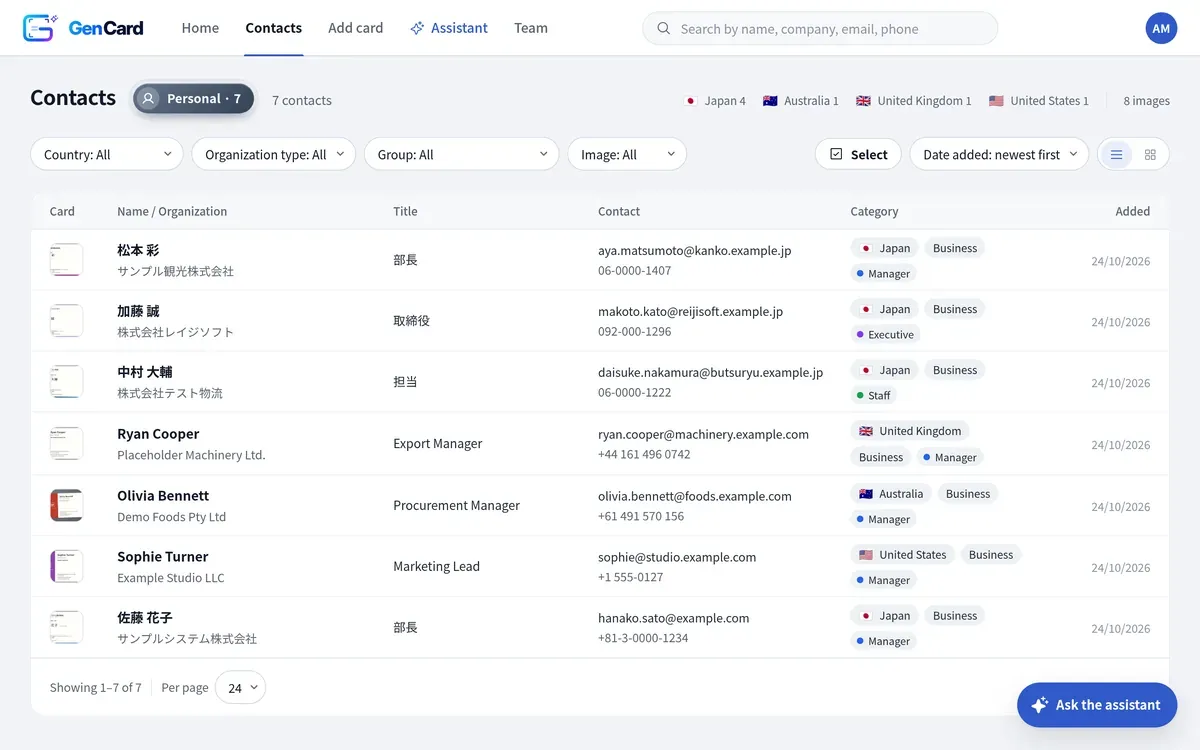
Many CRMs store companies (accounts) separately from people (contacts). Depending on your CRM, a card may become a contact linked to an existing account, or a new account and contact if no match exists. Here are the main fields GenCard’s API returns and where they typically go:
| GenCard API field | Contents | Typical CRM destination |
|---|---|---|
company |
Company name | Account name |
name |
Person’s name | Contact name (split into family and given name in your script if needed) |
title / department |
Job title / department | Contact title / department |
emails |
List of email addresses | Primary email (for example the first one) |
phone_details |
Number, type (mobile, office, direct…), extension | Mobile and work phone |
address / addresses |
Address text | Account address |
website |
Website | Account website |
country |
Two-letter country code | Account country |
org_type |
business, government, organization or unknown | Account type |
industry / keywords |
Industry / keywords | Account industry, tags |
groups |
Groups in your card workspace (trade fair, stage…) | Campaign, tag, lead source |
id / updated_at |
GenCard ID / last update | External ID / change detection |
Set a duplicate rule
Store GenCard’s id as an external ID in the CRM and update the record if that ID already exists, otherwise create it. If your CRM supports upserts on a unique external ID, use them. Also decide how to match contacts that are already in the CRM without that ID, for example by email.
In GenCard, a newly scanned card is added to an existing contact when the name matches and the email or phone number matches too; the older card stays in the contact’s card history and the contact ID does not change. A card with the same name and company but no matching email or phone is not merged automatically; it is saved as a separate contact and flagged for review.
Japanese cards need a little extra care
- Name order: Japanese names are usually written family name first. If your CRM has separate first and last name fields, decide how your script splits them, and check the English side of the card when there is one.
- Phone numbers: Japanese numbers start with 0 domestically. If your CRM expects international format, convert to +81 and drop the leading 0; keep extensions in a separate field.
- Company names: 株式会社 (Co., Ltd.) can come before or after the name and is part of the official name, so keep it as printed.
Our guide on how to read a Japanese business card explains these parts in detail.
Example: pulling card data with GenCard’s API
API tokens are available on the Pro and Team plans. In GenCard, go to Settings › API tokens › Create token. For sending data to a CRM, a read-only token is enough. See API tokens for how tokens work.
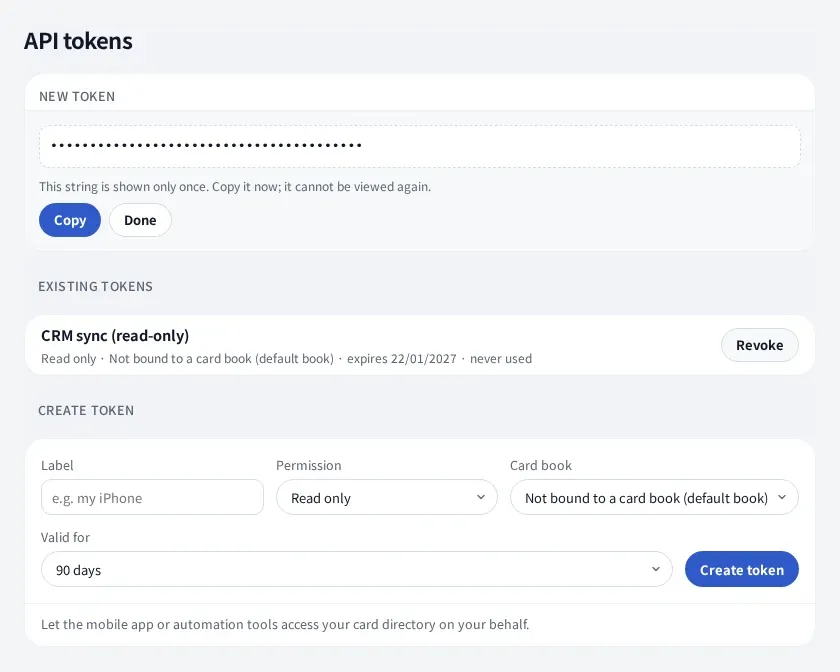
This request returns the newest 50 contacts (the token is a placeholder):
curl -H "Authorization: Bearer <token>" \
  "https://api.gencard.jp/api/v1/contacts?size=50&sort=created-desc&page=1"
Part of the response, using a fictional card:
{
  "items": [
    {
      "id": "c_0001",
      "name": "佐藤 花子",
      "company": "サンプルシステム株式会社",
      "title": "部長",
      "department": "第二開発部",
      "emails": ["hanako.sato@example.com"],
      "phone_details": [
        { "number": "03-0000-1234", "type": "direct", "ext": "" },
        { "number": "080-0000-5678", "type": "mobile", "ext": "" }
      ],
      "country": "JP",
      "org_type": "business",
      "groups": [{ "id": "g_01", "name": "Trade fair", "source": "manual" }],
      "updated_at": "2026-10-20T09:15:00Z"
    }
  ],
  "total": 1,
  "page": 1,
  "size": 50
}
Things to know:
sizeis up to 200 per request. Increasepageuntil you have readtotalrecords.- You can filter by
group,countryand other parameters. One approach: create a group such as “Send to CRM” and add cards to it once they have been checked. See groups. - There is no filter by update time, so to send only changes, compare each record’s
updated_atwith your last sync in the script.
A simple sync routine
- Record the time the sync starts.
- Read all relevant contacts from the GenCard API, page by page.
- Select contacts updated since a little before the previous sync (an overlap reduces the risk of missing records updated while you were reading). Run a full comparison now and then as well.
- Convert each contact into account and contact records using your field map.
- Upsert into the CRM by external ID.
- Put failed records in a retry queue that is processed on every run, then save the start time from step 1 as the new sync point.
This is a best-effort polling routine, not a guaranteed sync: contacts added or deleted while you page through results can shift positions, which is why the periodic full comparison matters.
Each CRM has its own API, authentication and rate limits; check its official documentation.
What GenCard does and doesn’t do
GenCard is the entry point that turns cards into customer data with AI, not a full CRM.
| GenCard does | Not available yet |
|---|---|
| Reads Japanese, English and Vietnamese cards with AI and splits them into fields | Built-in connectors for Salesforce, HubSpot, kintone and others |
| Marks low-confidence cards Needs review; manual corrections are never overwritten by the AI | Webhooks and automation |
| Suggests industry and keywords, and auto-classifies cards into your own groups when AI classification is on for a group set | Deals, pipelines and appointments |
| Answers questions about your card workspace through the AI assistant | Importing contacts from CSV or vCard files |
| Exports Excel, CSV, vCard and import files for kintone, Salesforce and HubSpot (paid plans) | |
| Shares a team workspace with four roles (Team plan, from 2 seats) | iPhone app (use the browser on iPhone) |
| Provides contact data as JSON through API tokens (Pro and Team plans) | Online sign-up for paid plans (not open yet) |
A token with read and write permission can also create contacts one at a time (POST /api/v1/contacts), so moving data into GenCard is possible with your own script, but there is no import feature for CSV or vCard files. Plans and AI credits are on the pricing page.
FAQ
Do I need a CRM if I already use a business card app?
A card app is built for capturing, searching and sharing contacts. If you need to track deals, conversations and follow-ups, pair it with a CRM.
Can I connect GenCard to my CRM without coding?
Yes, on a paid plan: use Export on Contacts, pick the import file for kintone, Salesforce or HubSpot, and load it with your CRM’s import tool. Automatic sync still needs the API and someone to write and maintain a script, or an outside developer.
How often should I sync?
Base it on how quickly your team follows up. Consider a daily sync if your sales team follows up quickly, or a weekly sync or one after each event if you process cards in batches.