A Business Card App for Japan: What GenCard Does Differently
What GenCard does for people working in Japan, a checklist for comparing business card apps, what it does not do yet and who it suits best.
If you work in Japan and collect cards in Japanese, English and other languages, the business card app you pick matters more than it seems. GenCard is a business card app built for that mix: it scans Japanese (kanji and kana), English and Vietnamese cards and saves them as contacts in one place, imports up to 500 images or PDF pages per selection, sorts cards into your own groups with AI, and answers questions about your contacts in English, Japanese or Vietnamese. This guide explains GenCard’s features with a checklist you can use to compare business card apps, lists what it does not do yet, and says who it suits. It is written by GenCard’s developer.
Where business card apps differ
Most apps that scan cards share the basics: take a photo, get a contact. The differences show up in a few places:
| What to check | Where apps differ |
|---|---|
| Card languages | Japanese-focused, English-focused, or several languages |
| Interface language | Japanese only, or also English and others |
| Bulk import | One photo at a time, or batches of images and PDFs |
| What the AI does | Reading only, or also sorting and answering questions |
| Team sharing | Personal only, or shared with roles |
| Pricing | Published prices or quote on request; free tier or trial |
| Getting data out | Export files, API, or connectors to other systems |
Other apps have their own strengths, and features change, so check each provider’s official pages before you decide.
What makes GenCard different as a business card app in Japan?
Japanese, English and Vietnamese cards in one workspace
GenCard reads Japanese (kanji and kana), English and Vietnamese cards. For a Japanese card with an English back, the Single card, both sides camera mode saves both sides as one card. You don’t need to type kanji to save a Japanese contact, though you should still check names and numbers after scanning.
The whole app in English, Japanese or Vietnamese
You choose the interface language in Settings › Language, and the AI assistant answers in that language too. A team can share one card workspace while each person uses the app in their own language.
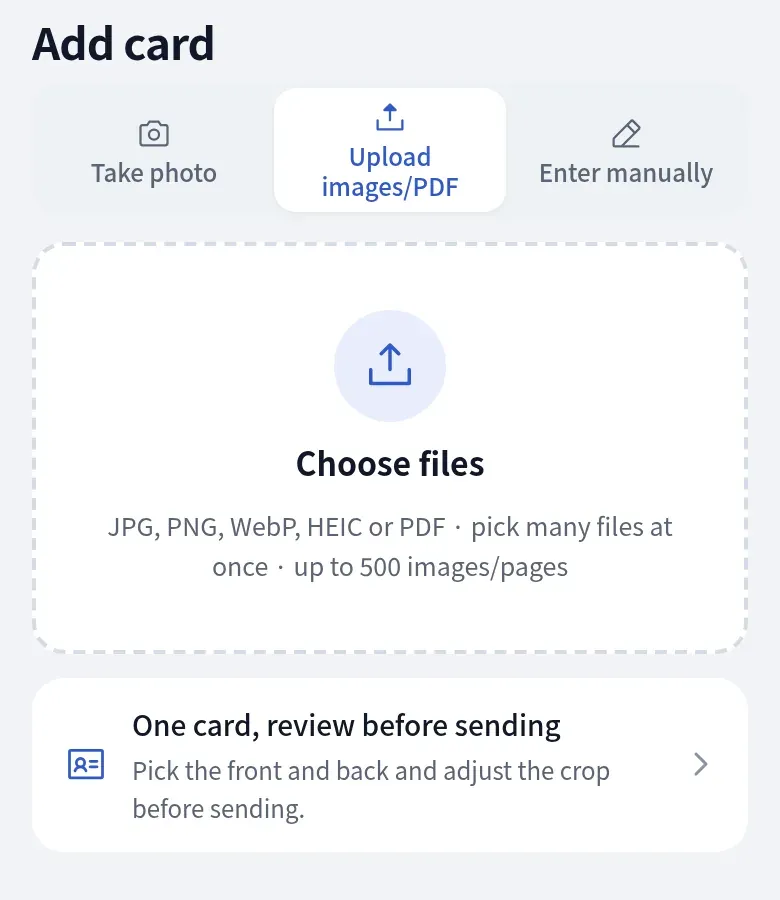
Bulk import of up to 500 images or PDF pages
Besides the camera, you can upload images or PDFs, up to 500 images or PDF pages per selection. For PDFs, two consecutive pages in each file can be paired as front and back. Once the upload finishes, recognition continues on the server, so you can close the app.
AI sorting into your own groups, with checks built in
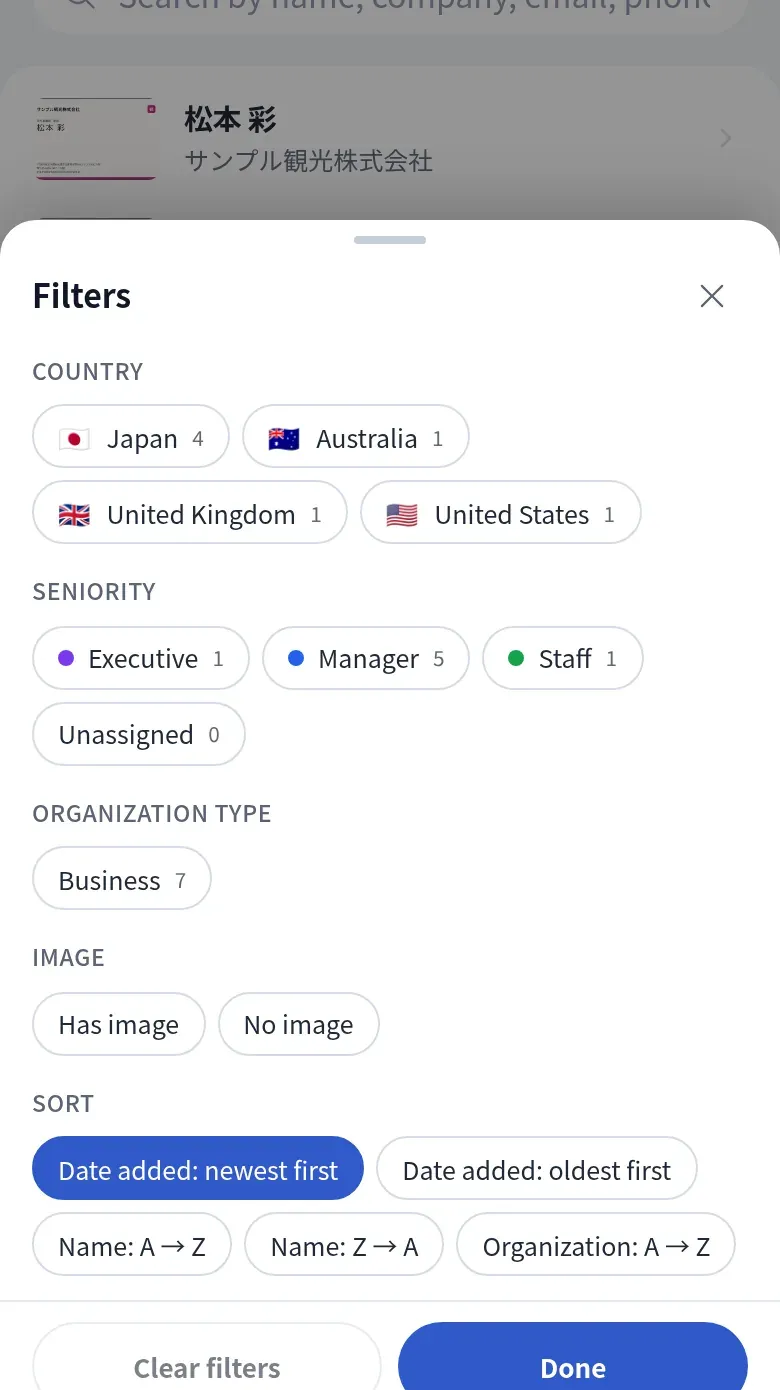
Each contact shows a country, organization type and industry, and you can edit the industry and keywords the AI suggests. For group sets with AI assigns on scan turned on, new cards are sorted into your own groups in the same AI call that reads them, at no extra credit. Cards the AI is unsure about are marked Needs review, manual corrections are never overwritten by the AI, and you can undo an AI classification run.
Ask your card workspace questions
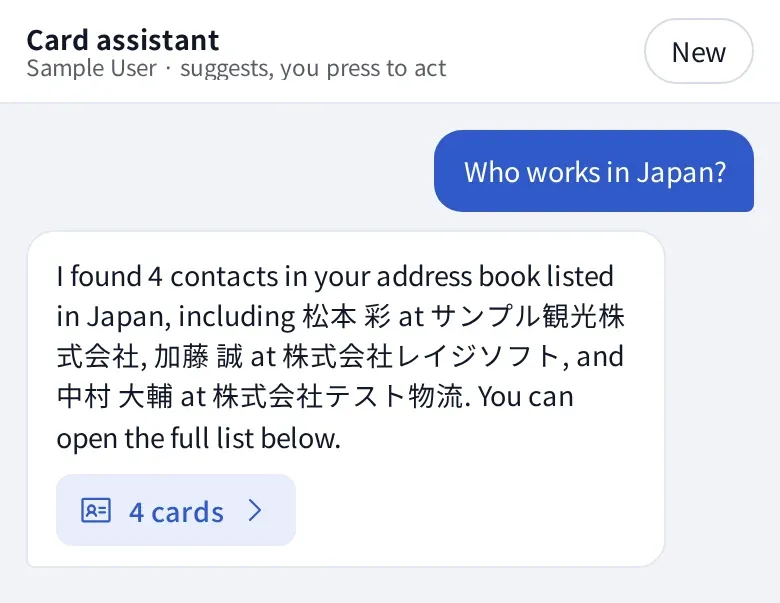
The AI assistant answers questions such as “Who works in Japan?”, “Which cards were added this week?” or “Who has no email address?”, and opens the matching cards. Changes such as adding a label to many cards are shown as a preview and applied only after you confirm.
Team workspaces with four roles
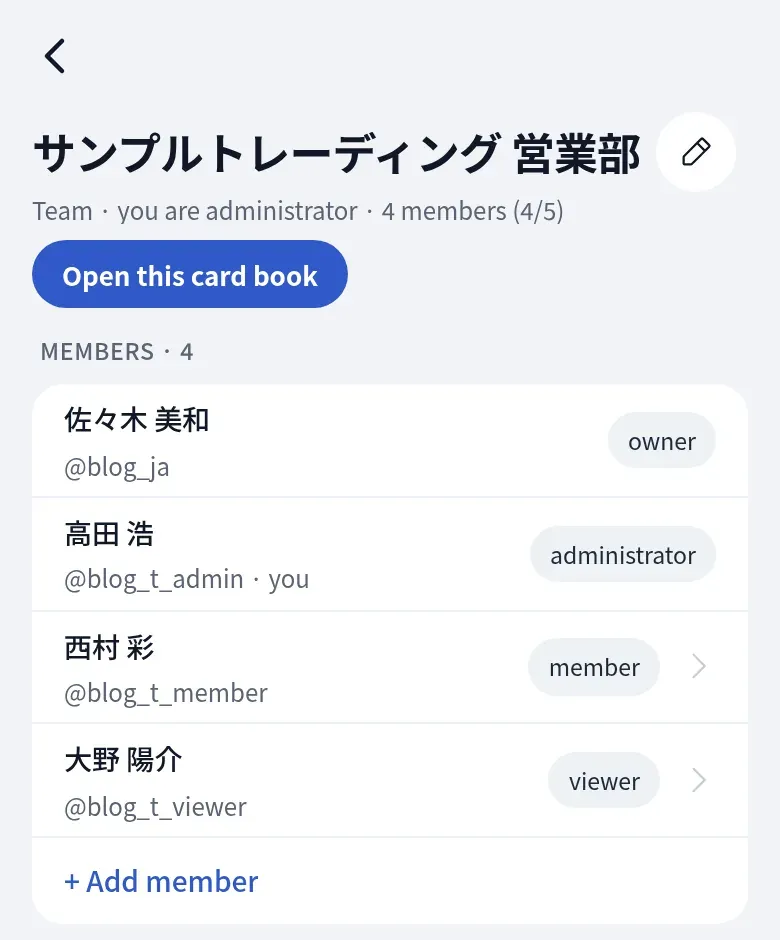
On the Team plan (from 2 seats), a team workspace is shared with four roles: Viewer, Member, Administrator and Owner. Cards a member added stay in the team workspace when that person leaves. Each seat gets its own 500 AI credits a month (up to 1,500).
Published prices and a free plan without a credit card
All prices are on the pricing page. The Free plan needs no credit card and adds 10 AI credits a day, up to a balance of 50; reading one card uses one credit, whether it has one side or two. You can also create your own digital card with a vCard QR code, and pull contact data as JSON with an API token (Pro and Team plans).
What GenCard doesn’t do yet
| Feature | Status |
|---|---|
| Automatic sync with Salesforce, HubSpot, kintone and others | Not available. Paid plans can Export import files for these CRMs from Contacts; Pro and Team can also use API tokens (JSON) |
| Webhooks, automation | Not available |
| Deals, pipelines, appointments | Not available; GenCard is not a CRM |
| CSV or vCard import | Not available |
| iPhone app | Not yet; use the browser on iPhone. Android has an APK (not on Google Play) |
| Online sign-up for paid plans | Not open yet |
Who GenCard suits, and who should look elsewhere
| GenCard is a good fit if you… | Consider other options if you… |
|---|---|
| Collect a mix of Japanese, English and Vietnamese cards | Need cards to flow into your CRM automatically through a connector |
| Prefer an app interface in English | Want a native iPhone app |
| Want to digitize a backlog or trade fair cards in bulk | Want deals and appointments in the same tool |
| Want AI-assisted sorting and search while keeping control over the results | Need to buy a paid plan right now |
New to Japanese cards? Our guide on how to read a Japanese business card explains each line, and Japanese job titles on business cards covers titles such as buchō and kachō. For a full list of features, see what GenCard can do.
FAQ
How much can I do on the Free plan?
The Free plan adds 10 AI credits a day and keeps up to 50. Each new card uses one credit, so with a saved balance you can scan more than 10 cards in a day. Team workspaces are part of the Team plan, and API tokens are available on the Pro and Team plans.
Can I switch from another business card app?
If your old app lets you export card images, you can import them in bulk. GenCard does not import contact data from CSV or vCard files.
Does GenCard work with only English cards?
Yes. Japanese, English and Vietnamese cards all work in the same workspace. Other languages or unusual layouts may give mixed results, so check the fields after scanning.